
內容目錄
nuttx on 429iDiscovery
在macOS建立 STM32F429 MCU的 Nuttx 工程項目。
Nuttx 新版本的 configure.sh 可以選擇多種主機開發,避免了一些編譯時的相容問題。
– -m:使用 macOS 開發
– -l:使用 linux 開發
– -c:使用 cygwin 開發
– -g:使用 mingw/msys 開發
– -l:使用 linux 開發
– -n:使用 Windows native 開發
– -B:使用 BSD 開發
Nuttx 开发文件地址:
https://nuttx.apache.org/docs/latest
安装设置开发环境文件:
https://nuttx.apache.org/docs/latest/quickstart/install.html
Nuttx源码分成nttx核心和app应用两个项目,需要用git下载到同一工作目录:
mkdir -p nuttxspace
cd nuttxspace
git clone https://github.com/apache/incubator-nuttx.git nuttx
git clone https://github.com/apache/incubator-nuttx-apps apps
安装工具
brew install stlink # stlink tools
brew install x86_64-elf-gcc  # Used by simulator
brew install u-boot-tools  # Some platform integrate with u-boot
brew install kconfig-frontends # kconfig

brew install --cask gcc-arm-embedded

### 若發現 brew 安裝的 arm工具有問題(太新了?)可以下載 10.3版的安裝包安裝(shell下要添加路徑)
wget https://developer.arm.com/-/media/Files/downloads/gnu-rm/10.3-2021.10/gcc-arm-none-eabi-10.3-2021.10-mac.pkg
export PATH=/Applications/ARM/bin:$PATH
挑选基础平台编译
cd nuttxspace/nuttxspace
./tools/configure.sh -L |grep stm32f429i
578:  stm32f429i-disco:usbmsc
579:  stm32f429i-disco:nxhello
580:  stm32f429i-disco:highpri
581:  stm32f429i-disco:fb
582:  stm32f429i-disco:nsh
583:  stm32f429i-disco:extflash
584:  stm32f429i-disco:adc
585:  stm32f429i-disco:lcd
586:  stm32f429i-disco:usbnsh
587:  stm32f429i-disco:nxwm  #...Failed to mount the PROC filesystem: -20
588:  stm32f429i-disco:lvgl
选择:stm32f429i-disco:lvgl 、stm32f429i-disco:nxwm
# make distclean # 若之前编译过其他平台,先 clean掉。。。

# -m macOS host, -l:linux host
./tools/configure.sh -m stm32f429i-disco:lvgl
# config
make menuconfig
# build
make -j
烧录:
开发板按住 User 按钮后 点击 Reset按钮进入烧录模式,然后执行
st-flash write nuttx.bin 0x8000000
验证:
screen /dev/cu.usbmodem* 115200
开发板按reset进入 nsh shell。
^A+d 可以退出 nsh回到host shell。然后screen -r 可以重新进入开发板的 nsh。
编译 sim:lvgl 在PC模拟器上运行 LVGL
只需要除错APP时,不必上机,直接在 PC 模拟器中运行。以下是LVGL Demo项目:
make distclean
./tools/configure.sh -m sim:lvgl
make -j
./nuttx
在虚拟触摸校准设定后,进入LVGL demo:
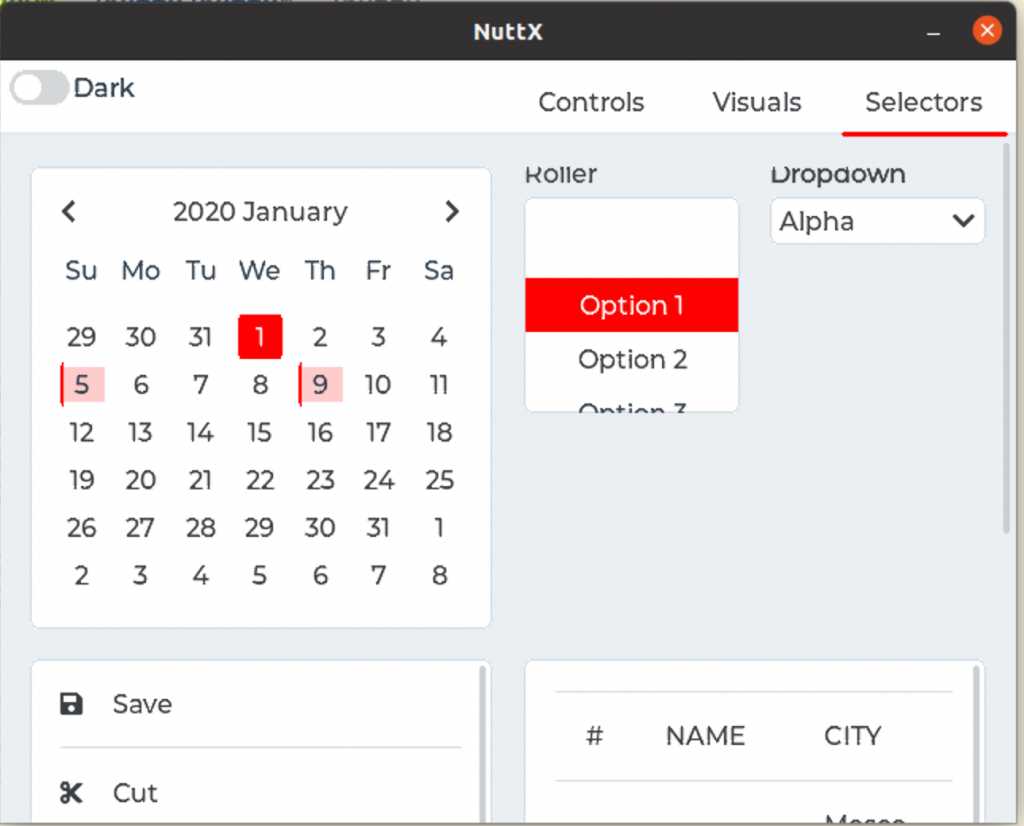
Halt 处理:
若simulator当机,另开 terminal 执行:
pkill nuttx
附錄 Linux screen 常用命令
若沒有安裝如 CoolTerm 的串口連線工具,可以考慮直接用 unix/linux 的 screen。
screen最常用命令:
- ### 創建screen session
screen -S test
- ### 脫離(detach)目前的screen對話
CTRL+a d
- ### 進入(attach)名為 test的screen對話
screen -r test
或者
screen -x test
- ### 建立新的screen窗口(create)
CTRL+a c
- ### 切換到下個screen窗口(next)
CTRL+a n
- ### 重命名目前窗口(rename),注意是W表示shift+w
CTRL+a W
(下方出現輸入提示,就可以輸入新名字)
- ### 显示当前所有窗口列表,注意是双引号
CTRL+a "
多窗口常用命令
- ### 纵向分割屏幕
CTRL+a |
注意,这里新分割的区域是没有shell的,你不能做任何事,所以,你可以使用
CTRL+a TAB
切换到新分割的区域,使用CTRL+a然后c,创建新的窗口,这样,你就可以同时在两个窗口中操作了
- ## 横向分割屏幕(S表示SHIFT+s)
CTRL+a S
设置窗口底部标题
# 允许设置窗口标题
caption always "%{.bW}%-w%{.rW}%n %t%{-}%+w %=%H %Y/%m/%d "
留言